Getting Started with PicSprig AI
Start with a clear visual task. Verify your email, review account eligibility and the current quote, then generate and privately download an image within the available limits.
What you will learn
- Understand the account and availability checks before spending credits.
- Read a real example, then move only its prompt into the Studio.
- Review an output and save it without assuming it matches a real product.
Before you start
PicSprig AI offers a non-charging, verified-email trial. Verify your account, then open the Studio or Account page for automatic activation. Generation is available after verified trial activation and remains subject to credits, daily units, a current quote and service availability.
Initial trial access activates automatically after email verification. When generation is enabled, a request needs a verified account with approved trial access, sufficient usable credits, remaining daily trial units and a current server quote for the selected settings. After verifying your account, open the Studio or Account page to activate trial access automatically.
An eligible newly verified account receives 100 welcome credits once; these gift credits have no scheduled expiry. Email verification activates initial trial access automatically when you open the Studio or Account page, subject to existing account restrictions. Credits do not override pending, declined, suspended, privacy-restricted or unknown states, and approval does not award another welcome grant. PicSprig Monthly is available at $9.90 per month for 1,000 credits per monthly period, plus applicable tax. Paid credits expire at the end of their recorded period; unused monthly credits do not roll over. Welcome credits stay separate. Review the published pricing and final checkout terms before purchasing. Read the account balance and current quote before generating.
Email verification activates initial trial access, subject to existing account restrictions. Verified Google sign-in can satisfy the email-verification requirement, but sharing an email address does not automatically link two accounts. Do not treat a sign-in attempt as proof that a welcome grant, trial approval or generation succeeded.
Daily usage units are separate from credits and image prices. Paid credits have an allowance of 5 weighted units per account; welcome credits have 2 weighted units per account. Shared site capacity is 50 weighted units per UTC day across all accounts. Gift-funded portions share a maximum of 10 weighted units per day, leaving at least 40 for paid requests; paid requests may use remaining capacity up to the site maximum. The monthly service-budget limits can pause gift requests earlier or pause all new generation until the first day of the next UTC month. Nano Banana 2 uses 1 unit per image and Pro uses 2. Each GPT Image low-quality square uses 1 unit. Mixed funding counts each portion against its own allowance. Limits reset at 00:00 UTC, do not roll over and are not a supplier billing cap. Failed requests may return credits, but consumed daily units are not restored. A paid balance and remaining personal allowance do not reserve shared capacity.
Choose a model and canvas
Choose GPT Image 2.5 Flare or Sunburst for low-quality 1024 × 1024 PNG requests, or Nano Banana 2 or Pro for the supported 1K ratios. Generation requires verified email, active trial access, available credits, remaining daily allowance and an enabled service. The model table shows the currently offered controls; recorded examples do not validate every model or setting.
Generation requires approved trial access, credits, remaining daily allowance and an enabled service. Listed settings do not prove availability or that every combination has been tested.
| Model | Status | Quality or size label | Canvas options |
|---|---|---|---|
| GPT Image 2.5 FlareOpenAI | Available with approved trial | low | 1024 × 1024 |
| GPT Image 2.5 SunburstOpenAI | Available with approved trial | low | 1024 × 1024 |
| Nano Banana 2Google | Available with approved trial | 1K | 1:1, 3:2, 2:3 |
| Nano Banana ProGoogle | Available with approved trial | 1K | 1:1, 3:2, 2:3 |
Choose the shape for the intended layout, then check the quality or image-size controls for that model. A starter link does not make these choices for you. In particular, opening a portrait example still leaves the Studio on its original default until you change the controls yourself.
Write and review your prompt
Describe one subject and its visible attributes, the setting, light and composition. Before sending, remove contradictions such as requesting both a close crop and the entire object with generous margins. The text field accepts at most 2000 characters; keep the useful visual instructions and remove commentary intended for a person.
This version creates images from text. It does not upload a reference photograph or edit an existing image. For a product concept, describe a fictional object rather than promising an exact replica of a real item. Use the prompt guide for a worked composition example.
Read a recorded starter example
The blue-vase example below is a single recorded Nano Banana 2 generation requested at 1K and 1:1. Read the full prompt together with the observation. Its visible reflections are useful to inspect, but they cannot establish that the fictional vase represents a product someone sells.
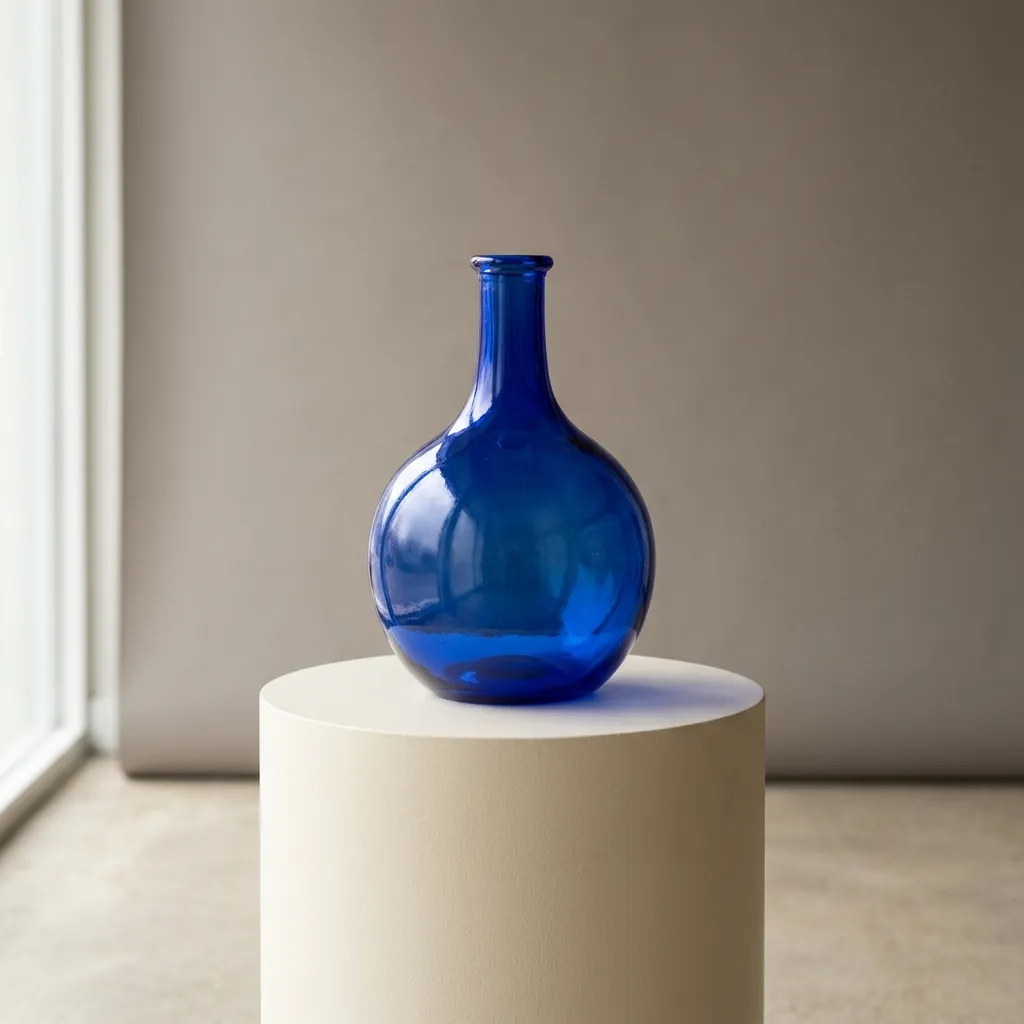
Nano Banana 2 · 1K · 1:1
The blue glass, cream pedestal and soft window light are visible. Reflections give the vase a photographic feel, but this fictional object is not evidence of matching a real product; reference-image editing is not available.
Generated · JPEG · 1024 × 1024
If the image cannot load, its prompt and recorded settings remain below. No substitute image is used.
The full prompt
An unbranded fictional cobalt-blue glass vase with a rounded body and narrow neck, centered on a cream pedestal against a warm gray background. Soft window light from the left, a subtle shadow to the right, eye-level camera, simple studio product photograph. No text or logos.
Open Studio still life promptOnly the prompt is filled. Choose your model and canvas manually; nothing is generated automatically.
The starter button fills only the prompt. To follow this recorded setup, manually select Nano Banana 2, 1K and 1:1 after entering the Studio. No image is generated by opening the link, and no credits are deducted by that navigation.
See the blue glass vase lighting exampleGenerate, inspect and download
When generation is enabled and your trial application is approved, sign in, choose your settings and review the live quote, usable credits and remaining daily units. Confirm the prompt before pressing Generate. If a request is uncertain or still processing, use the existing job status rather than issuing a fresh request that could spend more credits. A disabled action or unavailable response is not permission to bypass the gate.
- Inspect the entire subject, edges, reflections and unwanted text at full view.
- Compare the returned dimensions with your intended destination; the preview is not a guarantee of final print size.
- Use the result download once the job reports a usable output. Save a copy before preparing typography or layout in an external tool.
Your checklist
- Is generation enabled, is your email verified and has your trial application been approved?
- Have you checked the remaining account and service daily units separately from credits?
- Do the selected model and settings match the intended layout?
- Is the prompt under 2000 characters and free of conflicting instructions?
- Have you reviewed the live quote and usable balance?
- Will you inspect the downloaded image before using it?
Sources and evidence
These official references explain general concepts. The image, request settings and observations on this page come from our recorded example, not these references. Suggested variations are untested.