Image Aspect Ratios and Sizes Explained
The selected shape, a provider size label and the downloaded file dimensions are different facts. Use the recorded portrait artwork to understand them before planning a screen layout or a print.
What you will learn
- Distinguish aspect ratio from actual pixel dimensions.
- Choose only settings available for the selected model.
- Check a full-frame output and plan external finishing without calling it print-ready.
Shape is not a pixel count
An aspect ratio compares width with height. A 1:1 canvas is square, 3:2 is landscape and 2:3 is portrait. That relationship does not specify how many pixels the file contains. Read actual dimensions as width × height, not as a screen preview size.
A provider label such as 1K is a requested size setting, not a promise that every returned side is exactly 1024 pixels. A small preview or a cropped example card is another representation again. Keep the request, the original output and the website display dimensions separate when comparing results.
For arithmetic only, 1200 × 800 and 300 × 200 are illustrative pixel rectangles with the same 3:2 shape but very different pixel counts; 800 × 1200 is 2:3 portrait. These numbers are not a new generated example or additional selectable output settings. Check the downloaded file instead of assuming that a ratio fixes its pixel dimensions.
Use the settings for the selected model
Choose GPT Image 2.5 Flare or Sunburst for low-quality 1024 × 1024 PNG requests, or Nano Banana 2 or Pro for the supported 1K ratios. Generation requires verified email, active trial access, available credits, remaining daily allowance and an enabled service. The model table shows the currently offered controls; recorded examples do not validate every model or setting.
Generation requires approved trial access, credits, remaining daily allowance and an enabled service. Listed settings do not prove availability or that every combination has been tested.
| Model | Status | Quality or size label | Canvas options |
|---|---|---|---|
| GPT Image 2.5 FlareOpenAI | Available with approved trial | low | 1024 × 1024 |
| GPT Image 2.5 SunburstOpenAI | Available with approved trial | low | 1024 × 1024 |
| Nano Banana 2Google | Available with approved trial | 1K | 1:1, 3:2, 2:3 |
| Nano Banana ProGoogle | Available with approved trial | 1K | 1:1, 3:2, 2:3 |
Choose the intended destination first: a square image, a landscape frame or a portrait layout. Then choose a supported setting and review its current quote. Starter navigation only fills prompt text; even a portrait starter leaves the original model and square defaults unchanged until you select otherwise.
Read the requested and actual dimensions
The jazz artwork was requested with Nano Banana Pro, 1K and 2:3. Its recorded JPEG is 848 × 1264 pixels. The full-frame display below preserves that returned shape, whereas the gallery card is a cropped display derivative. Neither display changes what the original request meant.
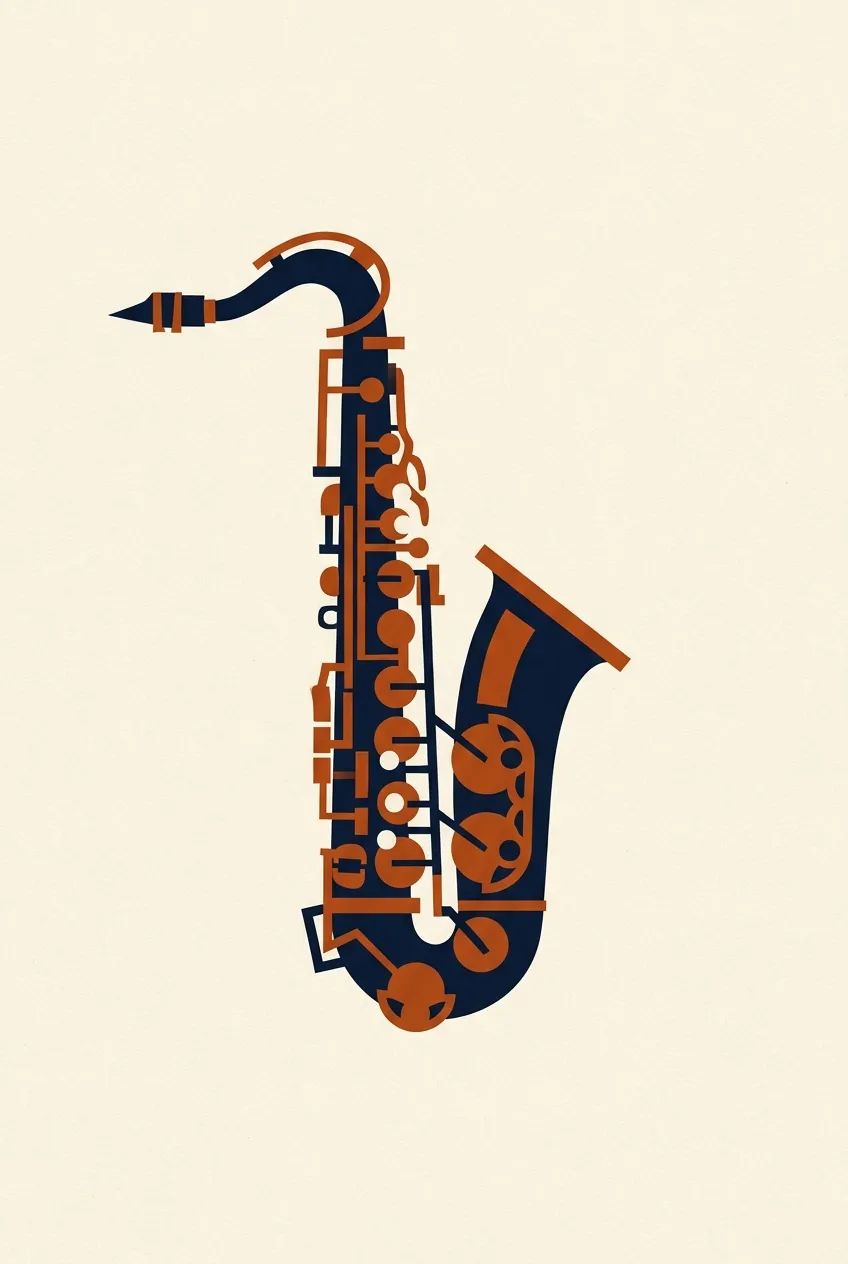
Nano Banana Pro · 1K · 2:3
The requested navy and burnt-orange palette appears on cream paper. The saxophone is stylized, not mechanically accurate, and there is no event lettering. This is full-frame artwork, not a print-ready poster; add verified copy and print settings externally.
Generated · JPEG · 848 × 1264
If the image cannot load, its prompt and recorded settings remain below. No substitute image is used.
The full prompt
A portrait poster artwork concept for a fictional jazz evening. An abstract saxophone-shaped silhouette formed from deep navy and burnt-orange geometric shapes on an ivory background. Strong central composition with generous blank space at the top for a title and at the bottom for event details added later. No lettering or logos.
Open Music event promptOnly the prompt is filled. Choose your model and canvas manually; nothing is generated automatically.
The output is close to the requested portrait ratio, not an exact 2:3 pixel rectangle. Inspect the full image before choosing margins or a crop. The palette is visible, but the stylized instrument is not mechanically accurate and the artwork contains no event lettering.
Screen dimensions and print preparation
For a screen placement, check the destination pixel dimensions and whether it crops the image. For print, the same pixels must cover a physical size at a chosen pixel density. Enlarging a file or changing a resolution label does not establish new original detail. Adobe’s size and resampling explanation covers these general relationships, not the quality of this generated artwork.
This example is not a print-ready poster. Set final dimensions, typography, verified event copy, margins, bleed and the printer’s required color settings in an external layout tool. PicSprig AI does not supply a print-production editor, and a portrait setting alone cannot guarantee a suitable printed result.
Choose square, landscape or portrait for the task
Match the canvas to the task before generating, then verify the returned width and height rather than assuming a label defines the exact file. Inspect the full frame for details that a card crop hides. If a destination requires a different ratio, decide which content can be cropped in an external tool without damaging the subject.
- Check the model-specific controls and availability message.
- Keep requested ratio and image size with your notes.
- Read actual pixels from the returned file or verified record.
- Review typography and print requirements externally; do not assume the artwork is finished.
- Use an available 1:1 canvas for a square composition, such as a centered product concept or a square post background.
- Choose a supported 3:2 landscape canvas for a wider tabletop scene; choose a supported 2:3 portrait canvas when planning a tall poster composition. Only use ratios listed for the selected model.
- 4:5 and 9:16 are not direct Studio output options. If a destination calls for another shape, crop or position the image in an external layout tool and check which details are lost. A prompt mentioning a story or portrait cannot select an unsupported canvas.
Your checklist
- Have you separated aspect ratio, size label and actual pixels?
- Does the selected model offer the desired setting?
- Have you inspected the full frame rather than just a card crop?
- Are the returned dimensions sufficient for the destination?
- Will final layout, text and print settings be verified externally?
Sources and evidence
These official references explain general concepts. The image, request settings and observations on this page come from our recorded example, not these references. Suggested variations are untested.