How to Write AI Image Prompts
A useful prompt describes what should be visible and where it belongs. Work through a breakfast-image brief, with one recorded output and honest limits instead of an invented before-and-after comparison.
What you will learn
- Turn a visual task into specific, compatible instructions.
- Separate composition from the model and canvas controls.
- Review one recorded output without mistaking suggested revisions for tested results.
A reusable text-to-image prompt structure
Begin with the object or scene a viewer should recognize. Replace a vague request for a nice food image with the visible ingredients, bowl material and viewpoint that matter to your task. A small set of decisive attributes is easier to review than a long collection of unrelated style words.
For a breakfast brief, specify the bowl and berries before decorative surroundings. For a product concept, specify shape, material and color before a setting. This is a way to organize your own brief, not a claim that any model will reproduce every instruction exactly.
Use an editable structure: [subject and material] on [surface], with [background], [light direction and softness], viewed from [angle], positioned [placement], leaving [area for copy]. Keep only the parts that serve the task. This is a writing template, not a tested output or a new model control.
Add the scene, light and palette
Describe the surface and background, then the light direction and softness. In the breakfast example, a pale pink tabletop gives the berries a distinct setting. Think about whether the scene needs soft shadows or strong contrast; avoid requesting both without explaining which part receives each.
Keep the palette connected to the intended use. If a later headline will sit on the background, a quiet area may be more useful than more decoration. General prompt-writing advice from Adobe supports descriptive scene and lighting instructions; it does not validate PicSprig AI outputs or a Gemini quality ranking.
See the blue glass vase lighting exampleLeave space for text in AI images
State the viewpoint and placement explicitly. An overhead view communicates a different arrangement from an eye-level close-up. If you want room for later copy, describe which side should remain simple and where the main subject should sit.
Shape belongs in the Studio controls as well as your planning. A prompt that mentions a square layout does not change the aspect-ratio selector. Nor does a blank region become an editable text layer: add the final headline and brand in a separate design tool.
- Pick one primary subject and viewpoint.
- Choose the subject placement and the area to leave open.
- Remove instructions that ask for both a busy background and empty copy space in the same place.
For a social post background, pair an off-center subject with one clearly named quiet region. For poster artwork, reserve a title area and a separate band for event details. Review the actual negative space before adding readable text externally; more empty space can also make the subject too small. Neither instruction changes the selected aspect ratio.
A recorded breakfast example
Read the complete prompt below before looking for its decisions in the image: the overhead arrangement, berry colors and pale pink space on the right. This is one recorded Nano Banana 2 output requested at 1K and 1:1, not a controlled experiment against a shorter prompt.
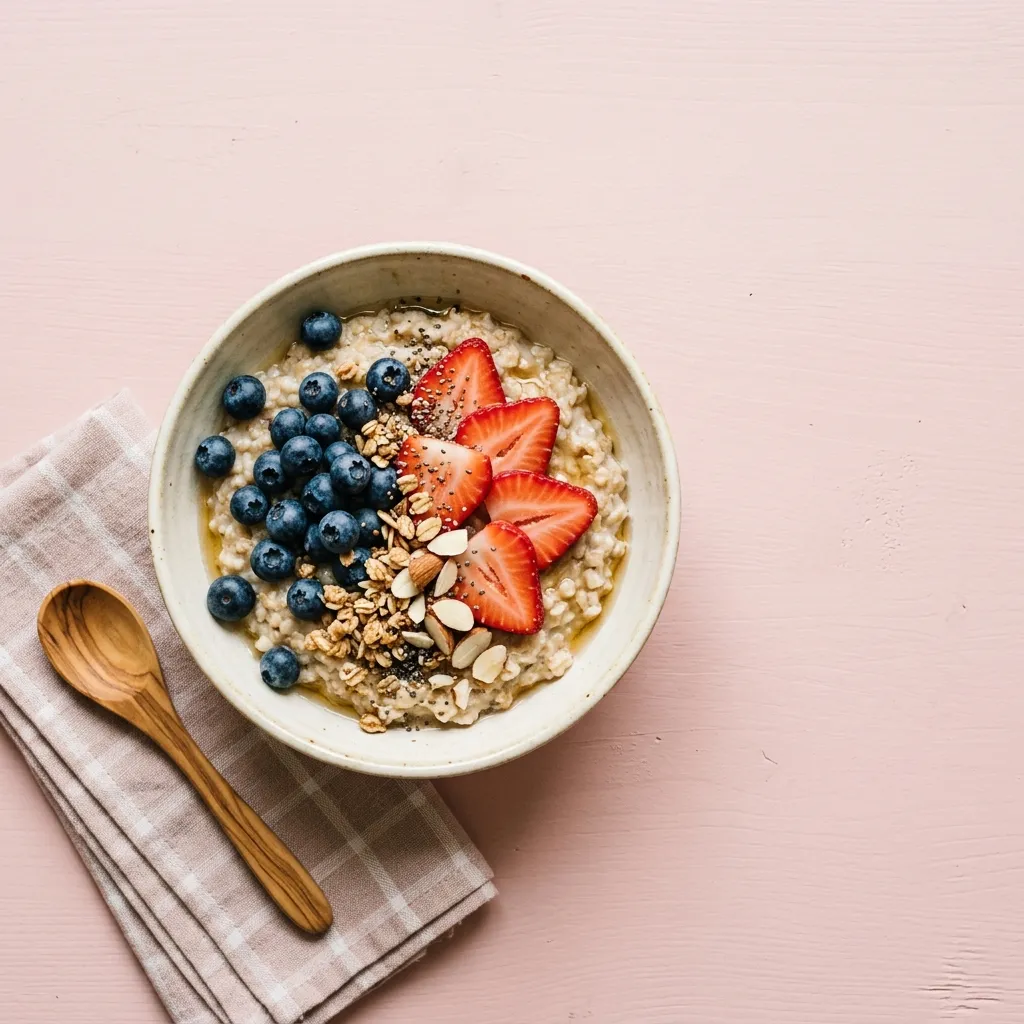
Nano Banana 2 · 1K · 1:1
The overhead bowl sits left of centre, leaving a pale pink area on the right for later copy. No headline or brand is included; final typography, layout and publishing must be completed in an external tool.
Generated · JPEG · 1024 × 1024
If the image cannot load, its prompt and recorded settings remain below. No substitute image is used.
The full prompt
A square editorial-style image of a fictional berry breakfast bowl on a pale pink table. Oatmeal, blueberries, sliced strawberries, and a small wooden spoon. Overhead view, soft daylight, playful but restrained color palette. Keep the upper-right area uncluttered for a caption added later. No text or logos.
Open Food post promptOnly the prompt is filled. Choose your model and canvas manually; nothing is generated automatically.
The observation records what is visible, including the absence of headline and branding. It is not proof that the image is ready to publish. Opening the starter transfers the original text only; manually choose Nano Banana 2, 1K and 1:1 if you want the recorded setup when generation becomes available.
Fix crowded scenes and unwanted text
Compare the output with a short list of requirements. Is the subject recognizable? Is the viewpoint correct? Is the requested open space usable? Check fruit shapes, utensils, edges and unwanted text rather than judging only a small card preview.
A possible next experiment is to ask for a little more space on the right while retaining the other instructions. That revision has not been generated or tested here, and no improvement is guaranteed. Changing one instruction makes your own comparison easier to interpret; it does not eliminate randomness or provider differences.
Keep any revision within the 2000-character limit and recheck trial access, daily units, usable credits and the live quote before a new generation request. PicSprig AI currently accepts text, not reference-image uploads or image editing. Where a precise logo, factual product match or polished typography is essential, finish and verify those elements outside this generator.
- If the scene is crowded, remove optional props and identify one focal subject before adding more style words.
- If the copy area is busy, state which side stays plain and remove instructions that fill that same region.
- If unwanted lettering appears, describe the intended unlabelled object and request no lettering in the ordinary prompt. There is no separate negative-prompt control in this workspace; review the output rather than expecting guaranteed exclusion.
Your checklist
- Can you name the main subject and its important visible attributes?
- Do the setting, lighting and colors support one task?
- Are viewpoint, subject position and open space explicit?
- Do your instructions avoid contradictions?
- Have you separated recorded observations from untested revisions?
Sources and evidence
These official references explain general concepts. The image, request settings and observations on this page come from our recorded example, not these references. Suggested variations are untested.