Turn a post idea into a visual concept by describing the subject, mood, colors, and space you want to leave for a caption or headline.
Food post: a prompt-led concept
Nano Banana 2 · 1K · 1:1
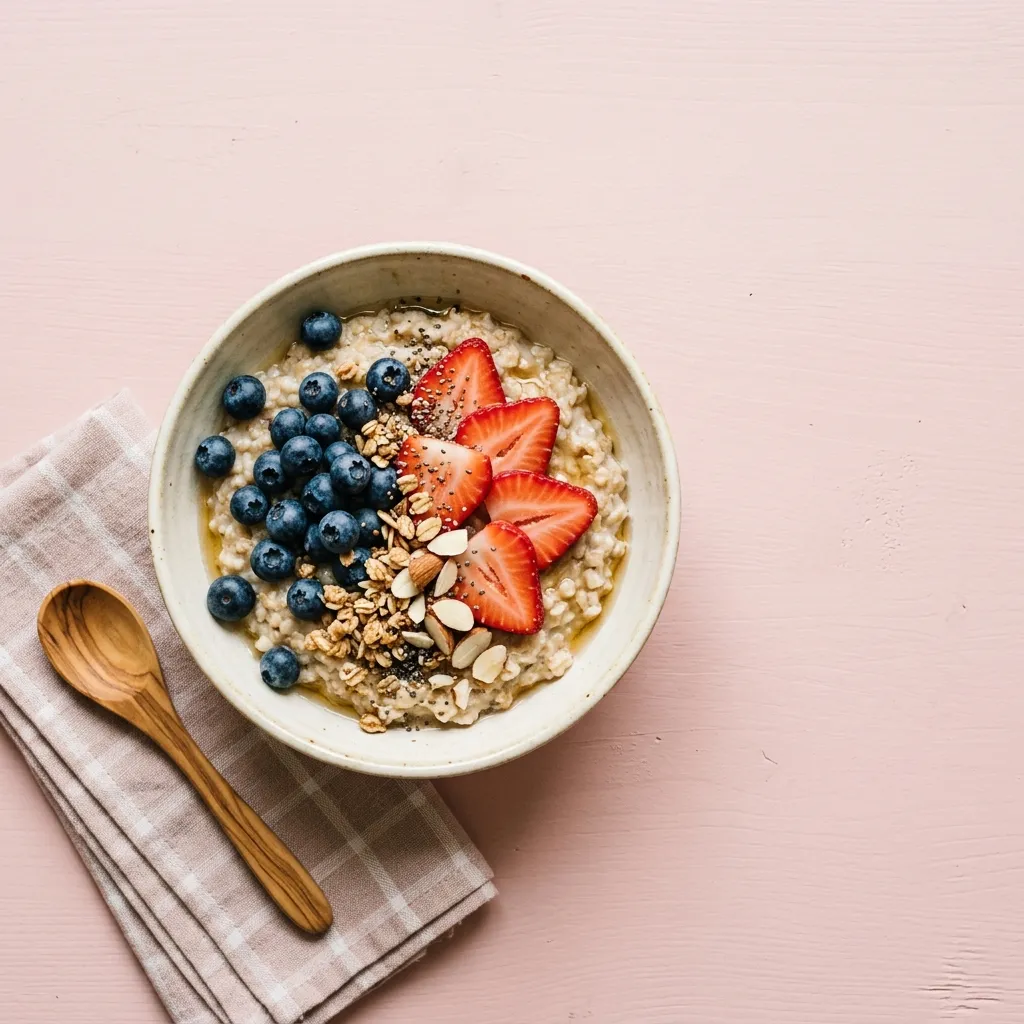
The overhead bowl sits left of centre, leaving a pale pink area on the right for later copy. No headline or brand is included; final typography, layout and publishing must be completed in an external tool.
Generated · JPEG · 1024 × 1024
If the image cannot load, its prompt and recorded settings remain below. No substitute image is used.
The full prompt
A square editorial-style image of a fictional berry breakfast bowl on a pale pink table. Oatmeal, blueberries, sliced strawberries, and a small wooden spoon. Overhead view, soft daylight, playful but restrained color palette. Keep the upper-right area uncluttered for a caption added later. No text or logos.
Only the prompt is filled. Choose your model and canvas manually; nothing is generated automatically.
How this prompt is built
Prompt checklist
Choose the placement first, then specify the subject, palette, viewpoint and which side needs space for copy. Select the actual aspect ratio in the Studio; a prompt cannot change the canvas controls.
Subject and point of view
The bowl, berries and wooden spoon define the subject. An overhead view describes how those elements should read together on the table.
A restrained palette
A pale pink table and soft daylight establish the mood without asking for many competing colors. Review the actual output rather than assuming brand-color precision.
Caption space
The upper-right area is requested as uncluttered space. Check whether the returned image leaves enough room for your own copy; the prompt is not a layout guarantee.
Suggested variation
Explore a different table color while retaining the same subject description. This is an untested iteration idea; related outputs may change composition and details.
Prompt tips
Choose square, portrait, or landscape in the workspace to suit your intended placement.
Specify where the subject belongs and where you need empty space.
Repeat a small color palette and a style description when exploring related posts.
Variations are suggestions, not a record of additional tests.
Two more prompt starters
These are additional ideas, not shown as tested results.
Announcement background
An abstract portrait background for a fictional creative workshop announcement. Layered paper-like shapes in terracotta, cream, and muted blue, with gentle shadows and a tactile collage appearance. Arrange the shapes around the edges and leave a large plain cream area in the center for text added later. No lettering or logos.
A square flat illustration of a fictional cozy reading corner: an orange armchair, a small lamp, a stack of plain unmarked books, and a leafy plant. Warm cream background, simple shapes, muted colors, welcoming mood. Leave clear space above the chair for a headline added later. No text or logos.
It creates visual material, not a publishing or complete layout workflow. Add final copy, branding and placement-specific layout in an external design tool.
Can I choose another shape for a post?
Choose a supported canvas or aspect ratio manually in the studio. The breakfast example is planned as square; other orientations are not implied to have been tested by this example.
Will a series look exactly consistent?
Related prompts can produce different compositions and details. Review each result individually; repeating palette and style instructions is a suggestion, not a consistency guarantee.
How do I leave space for text in a social media image?
Place the main subject off-center and name the side that should stay quiet, such as an uncluttered upper-right area for a short headline. Ask for visual material without lettering, then inspect whether the output leaves usable space. Add the final caption, logo and readable contrast in an external layout tool; blank space is not an editable text layer or a guaranteed layout.
Can I generate 4:5 posts or 9:16 story images directly?
No. 4:5 and 9:16 are not direct Studio output options. Choose only the canvas listed for the selected model, then use an external layout tool to crop or position the result for your intended destination. A crop can remove the subject or caption space, so plan margins and check the final placement. Naming a destination in the prompt does not change the canvas selector.
First-party analytics stays off until you allow it. You can change your choice at any time. Current status: Off until preferences are confirmed. · Privacy
AI Social Media Image Prompts & Ideas | PicSprig AI